
Acknowledging, assigning and suppressing alarms
An alarm has two things going on at once. Its lifecycle is owned by the system: it opens when the rule matches, and it closes when the condition clears (see Alarm timing and lifecycle). Its handling state is owned by you: who is on it, whether it has been seen, and whether it should be quiet for a while. The two never interfere. Acknowledging an alarm does not hide that the fault is still live, and a suppressed alarm still closes on its own when the port comes back.
This guide covers the handling side: Acknowledge, Assign, Suppress until OK, Suppress until date, and Open. Each one has a job, and picking the right one is what keeps the alarm list trustworthy.
Where the controls are
Section titled “Where the controls are”Everything starts on the Alarms page. Tick one or more rows and a bar appears at the bottom of the list with Change status, Assign to user and Delete selected. Change status opens a dialog with the three handling choices and an optional note; the note is stored in the alarm’s history so whoever finds the alarm later knows why.
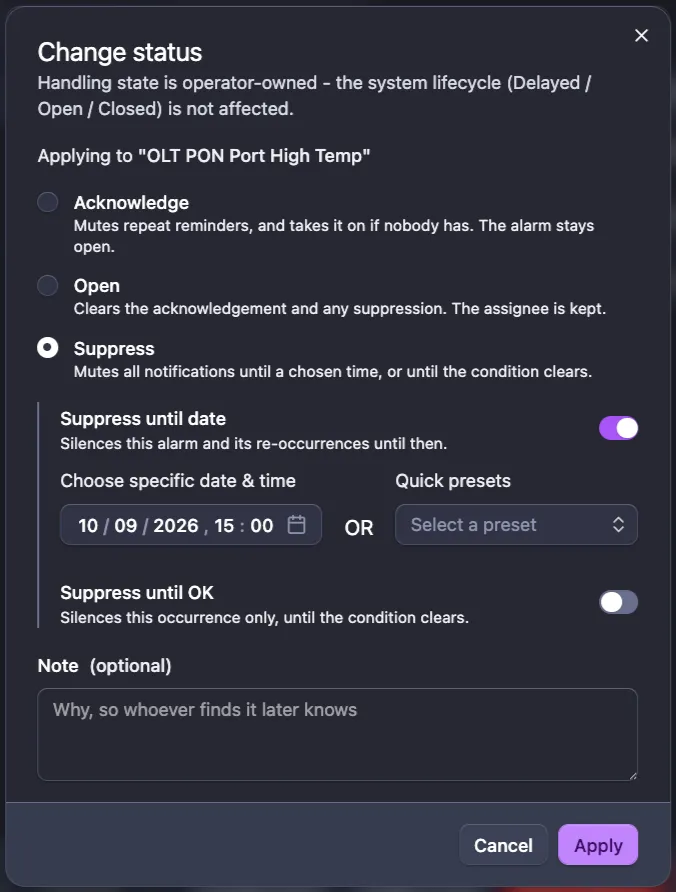
Two toolbar items help you find your way around the result:
- The Status column filter chooses which handling states are listed. The default is Opened and Acknowledged, so suppressed alarms are out of the way unless you ask for them.
- Assigned to me narrows the list to the alarms you own.
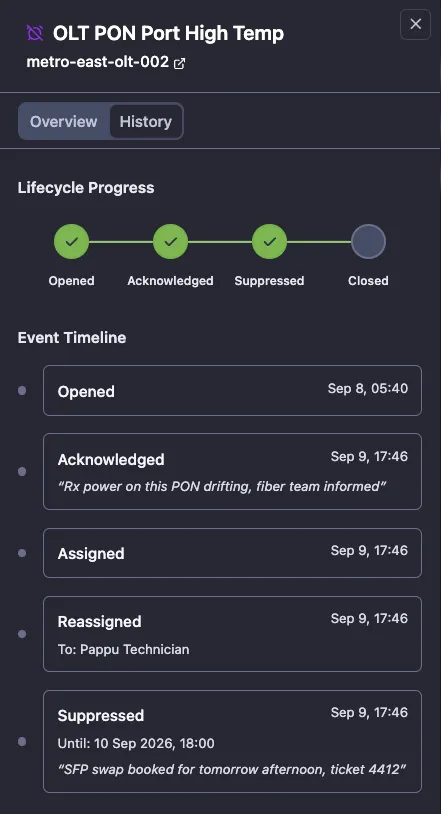
Click the eye icon on any row to open the details panel. The Overview tab shows the current status and assignee. The History tab shows the lifecycle progress and an event timeline with every acknowledge, assign, suppress and reopen, who did it, when, and the note.
Acknowledge
Section titled “Acknowledge”Acknowledge means “seen, someone is on it”. It stops the repeat reminders while the alarm stays open, and if nobody owns the alarm yet it assigns it to you. The first notification always goes out; acknowledging only quiets the follow-ups.
Use it for anything a person is actively working. The alarm stays in the default list, so the rest of the team can see that it is being handled and by whom.
Acknowledgement is cleared when the alarm is set back to Open, and it does not carry over to a later occurrence: if the same port goes down again next week, that is a new alarm and it arrives unacknowledged.
Assign
Section titled “Assign”Assign to user hands an alarm to a specific person, with or without acknowledging it. Use it when you dispatch work rather than take it: the NOC assigns the alarm to the field engineer who will visit the site. The same button reassigns an alarm that already has an owner, and clearing the field unassigns it.
The assignee survives status changes. Setting an alarm back to Open clears the acknowledgement and any suppression but keeps the assignee, so the person who owns the problem still owns it.
Suppress until OK
Section titled “Suppress until OK”Suppress until OK silences this occurrence only. The alarm moves out of the default list and sends no notifications. As soon as the condition clears, the alarm closes like any other and the suppression is over. The next time the same condition happens, a normal alarm opens.
This is the right choice for a condition that is expected right now, and that you want to hear about the next time it happens. The classic case is a port that is not in use:
- A new switch is added and every empty port raises a port-down alarm.
- Select those alarms and suppress them until OK.
- Months later a customer is connected to one of the ports. The port comes up, the old alarm closes, and the suppression ends with it.
- When that port later goes down for real, the alarm opens normally and pages the team.
Nothing had to be remembered or undone. The suppression lasted exactly as long as the condition it belonged to. It is the same choice for a device that is being replaced, or a PON port with no ONUs on it yet.
Suppress until date
Section titled “Suppress until date”Suppress until date silences the alarm and every re-occurrence of the same condition on the same device and port until the date and time you pick. Pick an exact date or one of the quick presets (30 minutes, 1 hour, 4 hours, 1 day, 3 days, 7 days).
Behind the scenes this creates a suppression rule for that device, port and alarm definition. If the alarm closes and the condition returns before the date, the new occurrence is created already suppressed. It does not appear in the default list and sends no notifications. When the date passes, the rule expires and the next occurrence alarms normally.
Use it when a fault is known and scheduled, and the alarm has become noise until then:
- An SFP with fluctuating Rx power opens and closes the optical alarm every few minutes. An engineer is booked to replace it tomorrow. Suppress the alarm until tomorrow afternoon and the team hears nothing more from that optical alarm until the swap is done. Only that one alarm is muted: if the same port goes down, or its temperature climbs, and the readings match a different alarm definition, that alarm fires as usual. If the swap slips, the optical alarm comes back on its own the day after.
- A planned maintenance window on a site tonight. Suppress the affected device alarms until the end of the window instead of teaching the night shift to ignore them.
- A flapping uplink that the carrier has a ticket on. Suppress it until the carrier’s promised fix date.
The difference from Suppress until OK is what happens after the alarm closes. Until OK is finished the moment the condition clears; until date keeps working across every close and reopen until the clock runs out.

Ending a suppression early
Section titled “Ending a suppression early”You do not have to wait for the date. Select the alarm and change its status:
- Open clears the suppression. The alarm returns to the Opened list on the next polling cycle, within about a minute, and keeps its assignee.
- Acknowledge also clears the suppression and marks the alarm as being worked.
Either one ends the until-date rule immediately. From that moment the alarm behaves like any other: if it closes and the condition comes back, the new occurrence opens normally and notifies. So if you suppressed an alarm until tomorrow, then acknowledged or reopened it today, do not expect it to stay quiet until tomorrow. Suppress it again if you still want the silence.
Delete selected is different. It removes the current occurrence from the list but leaves an until-date rule in place. If the condition is still present, the next poll creates a new occurrence, already suppressed until the original date.
Open is the reset. It clears the acknowledgement and any suppression and puts the alarm back in the default list; the assignee is kept. Use it when a suppression was applied by mistake, when the fix you were waiting for did not happen, or when an acknowledged alarm needs to go back to the pool.
Seeing what is suppressed
Section titled “Seeing what is suppressed”Nothing should stay muted by accident. Set the Status filter to Suppressed to list everything currently silenced; each row shows whether it is suppressed until OK or until a specific date and time. Make this a weekly check on a busy network.
Which one to use
Section titled “Which one to use”| Situation | Action |
|---|---|
| Someone is working the fault now | Acknowledge |
| Someone else should work it | Assign to user |
| Expected condition, alarm again the next time it happens (unused port, spare device) | Suppress until OK |
| Known, scheduled fault that keeps re-alarming (flapping optic with a visit booked, maintenance window, carrier ticket) | Suppress until date |
| Suppressed or acknowledged by mistake, or the fix did not happen | Open |
| Alarm is pure noise on every device | Fix the alarm definition or its delay instead of suppressing |
Working in bulk
Section titled “Working in bulk”All of these actions accept a multi-selection. A bulk action applies to every eligible alarm in the selection and confirms how many were changed, so one alarm that has already closed does not block the rest. The note you enter is attached to each alarm’s history.