
Bulk uploading devices from a file
Adding devices one form at a time is fine for a handful, but not for a fleet. Devices upload takes a CSV or XLSX file and creates every device in it in one pass, up to 300 devices at a time. The columns are the same fields as the create-device form, so everything you already know about getting manufacturer and model right applies here too.
Before you start
Section titled “Before you start”- Have your SNMP community ready, and permit the agent’s IP in each device’s SNMP access list. A bulk upload with the ACLs not yet in place creates 300 devices that all fail to poll; see Device added but SNMP won’t poll.
- Check your brands and models against the supported vendors and models list first. Names are what select the polling template, and fixing them in the spreadsheet before upload is far cheaper than fixing 300 devices afterwards.
- If you run NetBox as your source of truth, don’t use file upload. Use the continuous sync instead, described in Adding devices.
Download the template
Section titled “Download the template”Go to Inventory → Devices and click Upload devices. Download the template in the format you want to work in, either Download CSV Template or Download XLSX Template. Both produce the same columns; CSV and XLSX are the two supported upload formats.
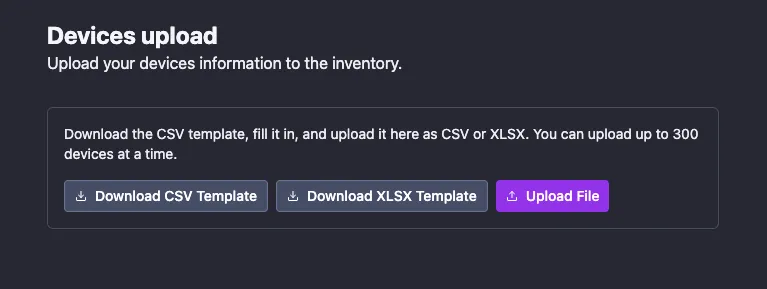
Work from the downloaded template rather than building a file from scratch. The importer reads the columns by their header names, so keep the header row exactly as it comes.
Fill in the template
Section titled “Fill in the template”The template has twelve columns. Six are mandatory, six are optional and may be left empty.
Mandatory fields
Section titled “Mandatory fields”| Column | Notes |
|---|---|
device_type |
One of OLT, Switch, BNG, Server or Generic; decides which views the device gets |
hostname |
The name you’ll see everywhere; pick a convention and stick to it |
ip |
The management IP the agent can reach |
manufacturer |
Selects the polling template together with the model |
model |
Selects the polling template together with the manufacturer |
community |
Your existing SNMP v2c community |
Optional fields
Section titled “Optional fields”| Column | Notes |
|---|---|
zone_id |
A regional grouping, usable for alarm routing |
site_id |
The POP the device belongs to; drives the mobile view, so field engineers see their own site’s devices |
partner_id |
Tags devices belonging to a partner or local operator (LCO); scopes portal access and routes their alarms to their own channel |
mgmt_username |
Per-device management username; leave empty to use the tenant default credentials |
mgmt_password |
Per-device management password |
mgmt_secret |
Per-device enable/secret, where the vendor uses one |
Leave the three mgmt_* columns empty and the device falls back to your tenant’s default
credentials, the same as leaving Use default credentials on in the form.
A filled file, one row per device, looks like this:
device_type,hostname,ip,manufacturer,model,community,zone_id,site_id,partner_id,mgmt_username,mgmt_password,mgmt_secretOLT,OLT,192.168.1.1,Syrotech,SY-GEPON-4P,public,,,,,,Switch,Switch,192.168.1.2,Huawei,S5700,public,,,,,,BNG,BNG,192.168.1.3,MikroTik,x86,public,,,,,,Server,Server,192.168.1.4,Supermicro,X10SRi-F,public,,,,,,Generic,Generic Device,192.168.1.5,Supermicro,X10SRi-I,public,,,,,,Upload the file
Section titled “Upload the file”Back on Inventory → Devices → Upload devices, click Upload File and pick your CSV or XLSX. NetSense shows the parsed contents under File data so you can confirm it read the file you meant, then reports what it created under Import result, broken down by device type.
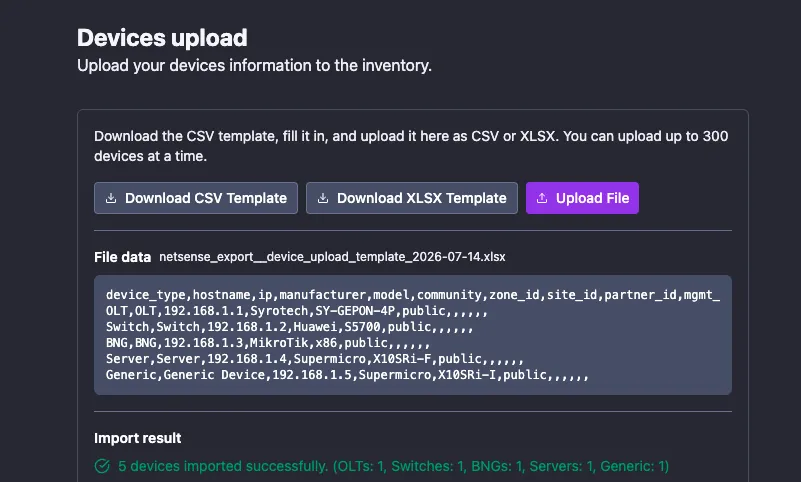
Check the breakdown against what you expected. A count that’s lower than your row count, or a
device type you weren’t expecting, usually means a device_type value that doesn’t match one
of the five accepted values.
Uploaded devices behave exactly like devices added through the form: they appear in the list immediately and start polling right away.
After uploading
Section titled “After uploading”- Spot-check a few devices for traffic and, on OLTs, ONU data. If a device polls but shows nothing, fix the manufacturer/model names and run a rediscover; the details are in Adding devices.
- Expect port-down alarms from unused ports on freshly added switches; see Taming alarm noise for the cleanup.
- Enable device syslog on the new devices.