
Installing the NetSense agent
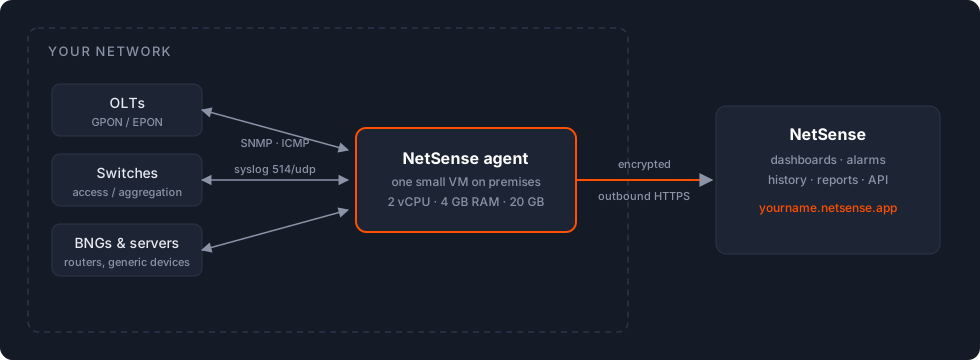
The NetSense agent is a small collector that runs inside your network. It polls your devices over SNMP and ICMP, receives their syslog, and ships the results to your NetSense tenant over an encrypted connection. Everything else (the application, database, dashboards) runs on the NetSense side; the agent is the only thing you host.
Installation is a short, mostly hands-off process: you install one VM with a plain Linux, give us SSH access, and our team completes the configuration remotely, usually within one working day.
Server requirements
Section titled “Server requirements”A small virtual machine is enough for most networks:
| Resource | Minimum |
|---|---|
| CPU | 2 vCPU cores, x64 (Intel or AMD) |
| Memory | 4 GB RAM |
| Disk | 20 GB (SSD or HDD) |
| Boot | From ISO/CDROM or USB flash drive |
| Network | One IP reachable from the internet (public IP or port-forward), plus reachability to your device management network |
A VM on your existing hypervisor (ESXi, Proxmox, Hyper-V, KVM) is the usual choice; a small physical server works equally well. For a physical machine, write the OS installation ISO to a USB flash drive with any imaging tool; we recommend Balena Etcher, which is available for all major operating systems.
Install the operating system
Section titled “Install the operating system”Install a plain, minimal Linux on the VM or server. Two distributions are supported:
| Distribution | Download | Notes |
|---|---|---|
| AlmaLinux 9 Minimal (recommended) | almalinux.org/get-almalinux | Pick the Minimal ISO for your architecture (x86_64) |
| Ubuntu Server LTS (22.04 or 24.04) | ubuntu.com/download/server | Choose the minimal/standard server install, no desktop |
AlmaLinux is what we run and test on most, so it is the first choice; Ubuntu Server works equally well if it fits your environment better. No extra packages or roles are needed beyond the base install, our team brings everything the agent requires.
- Install the OS on the VM or server, configuring the network (IP address, gateway, DNS) during installation.
- Enable SSH (
sshd) and create a login for our team, or add our SSH key to a user with sudo rights. - Send us the machine’s private and public IP addresses, the access details, and a list of your internal networks (the address space your network devices use). That’s your whole part of the job.
Once we have access, our team installs and configures the agent, prepares your tenant, and schedules a short onboarding session to show you how to add devices.
Firewall checklist
Section titled “Firewall checklist”If there is a firewall between the agent and the internet, or between the agent and your devices, allow the following:
- To the agent from your devices: UDP 514 (syslog), ICMP.
- From the agent to your devices: UDP 161 (SNMP), ICMP.
- Between the agent and NetSense: outbound HTTPS, plus the service ports our team will give you during setup. We will also share the NetSense backend IP ranges to whitelist if you filter inbound SSH.
On the device side, remember that SNMP access lists must permit the agent’s own IP. This is the single most common reason a device shows ping but no SNMP data after onboarding: the firewall was opened for our public range, but the device ACL never learned the agent’s local address.
Frequently asked questions
Section titled “Frequently asked questions”The installer asks for a username and password. What do I enter? Whatever you like: any credentials created during the OS installation are yours and independent of the agent. We only need SSH access afterwards, either through a login you create for us or through our SSH key added to a sudo-capable user.
Can I run it on a VM instead of a dedicated server? Yes. Most deployments run on a VM. The requirements above are the same either way.
Only a public IP is configured. How will the agent reach my devices? The agent needs a route to your management network. Either configure a second (private) interface on the VM, or route the management subnets over your network to the agent. Our team will ask about this during setup, having the answer ready speeds things up.
Who monitors and maintains the agent machine? We do. The agent is managed by the NetSense team as part of the service: we update it, monitor it, and use it for diagnostics when you report an issue.
How long does the whole setup take? Your part (installing the VM) typically takes under an hour. After you share the IP, our team usually completes the backend setup within one working day, then we schedule a short session to show you how to add devices and users.